回首頁 Home Page
| step 1 | |||
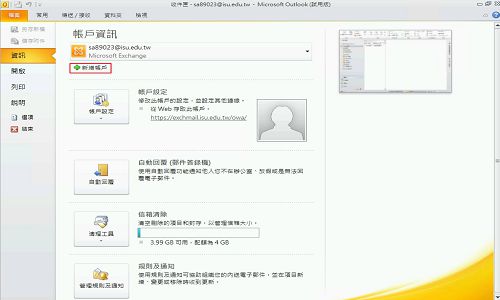
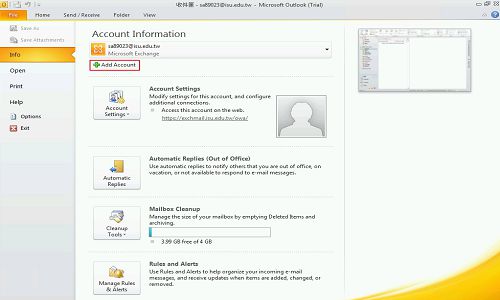
| 先使用Outlook軟體自動設定新版帳戶,步驟請參考Outlook 2010設定或Outlook 2007設定。 | Use Outlook to create the Exchange account for Outlook 2010 or Outlook 2007. | ||
| step 2 | |||
| 再另外使用手動連線設定建立舊版電郵系統的帳戶。 | Create the account to link the old version of the email system. | ||
 |  | ||
| step 3 | |||
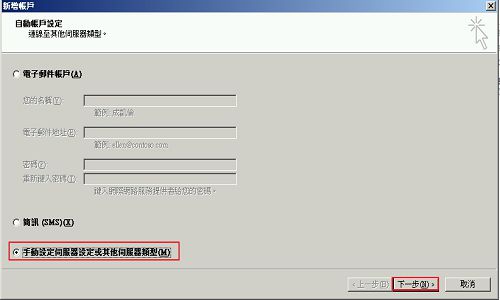
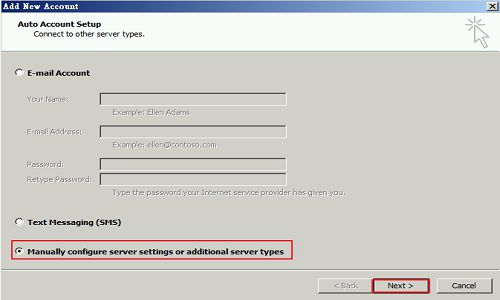
| 選擇[手動設定伺服器設定或其他伺服器類],並點[下一步]。 | Check "Manually configure server setting or additional server types" and click "Next". | ||
 |  | ||
| step 4 | |||
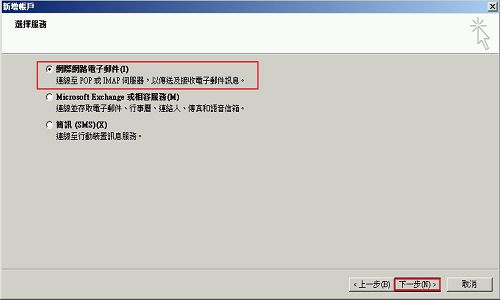
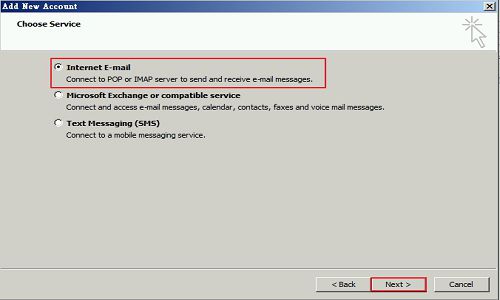
| 選擇[網際網路電子郵件],並點[下一步]。 | Check "Internet E-mail" and click "Next". | ||
 |  | ||
| step 5 | |||
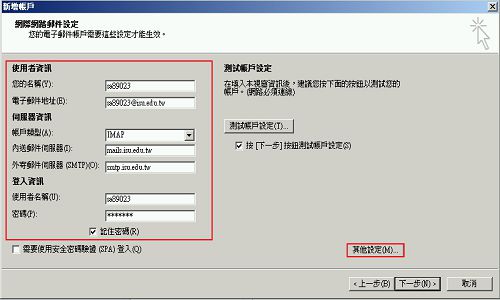
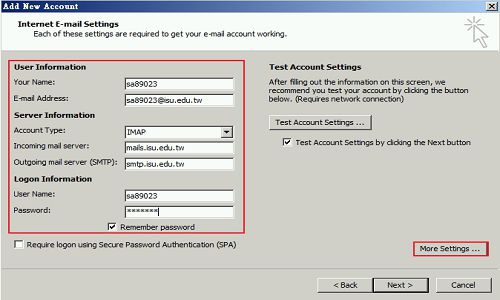
| 一定要選取 IMAP, 接著輸入內收郵件伺服器及外寄郵件伺服器。
點[其他設定]。 | Select "IMAP", Set "Incoming mail server" and "Outgoing mail server". Click "More Settings...". | ||
 |  | ||
| step 6 | |||
| 勾選[我的外寄伺服器(SMTP)需要驗證],並點[確定]。 | Check "My outgoing server (SMTP) requires authentication" and click "OK". | ||
 |  | ||
| step 7 | |||
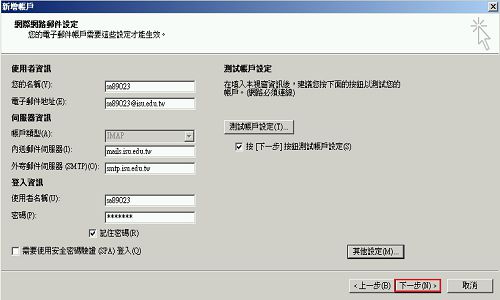
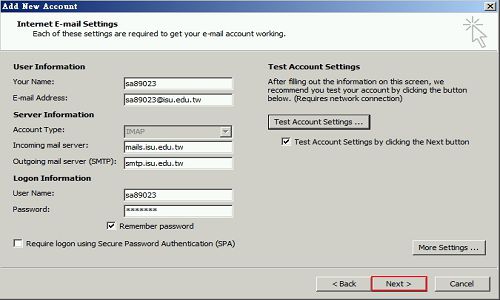
| 點[下一步],測試帳戶設定。 | Click "Next" to test account settings. | ||
 |  | ||
| step 8 | |||
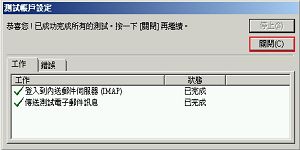
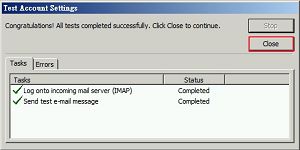
| 測試成功後,點[關閉]。 | Success and click "Close". | ||
 |  | ||
| step 9 | |||
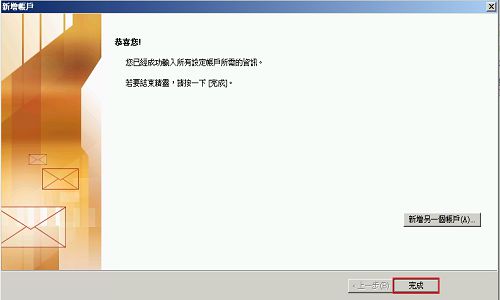
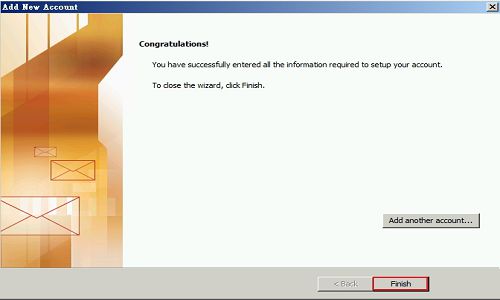
| 點 [完成]。 | Click "Finish". | ||
 |  | ||
| step 10 | |||
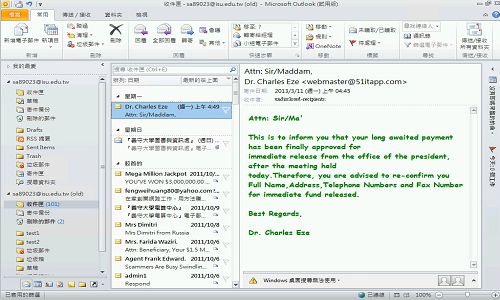
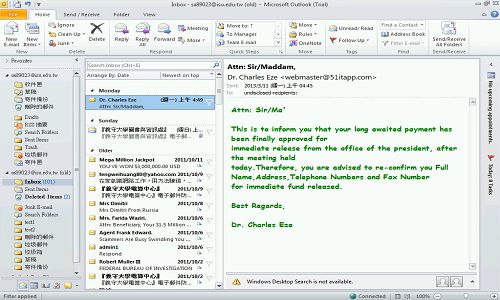
| 舊電郵系統的信件。 | The mails in old email system. | ||
 |  | ||
| step 11 | |||
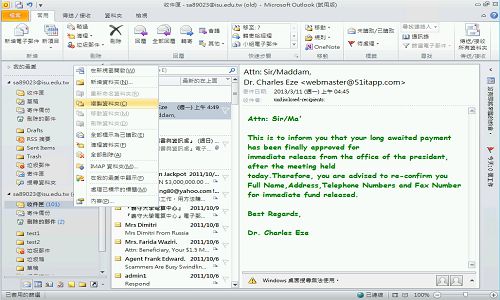
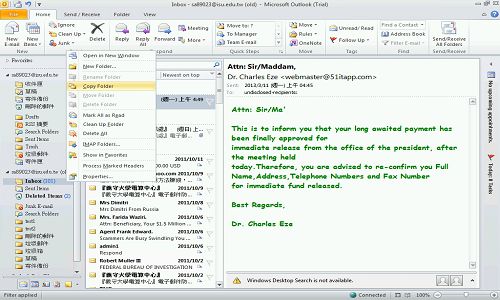
| 在[收件夾]點右鍵,選擇[複製資料夾]。 | Right click in "Inbox" and select "Copy folder". | ||
 |  | ||
| step 12 | |||
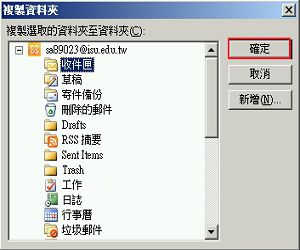
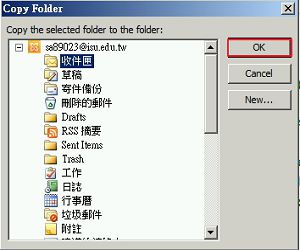
| 選擇複製目的地資料夾,並點[確定]。 ※教職員電郵帳戶及雲端電郵帳戶都要做這個操作。 | Select the copy destination folder and click "OK". ※The operation are done both the Faculty email account and the cloud email account. |
||
 |  | ||
| step 13 | |||
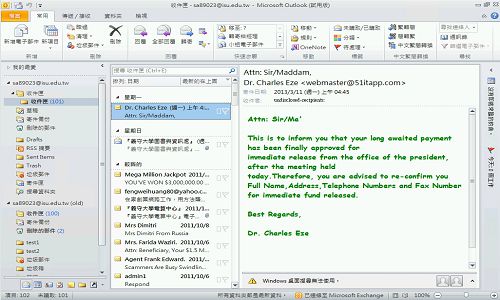
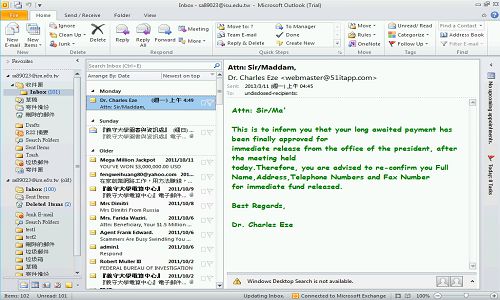
| 複製成功,同步到新版電郵系統。 | Copy successfully and Synchronized to the new version of the email system. | ||
 |  | ||
| step 14 | |||
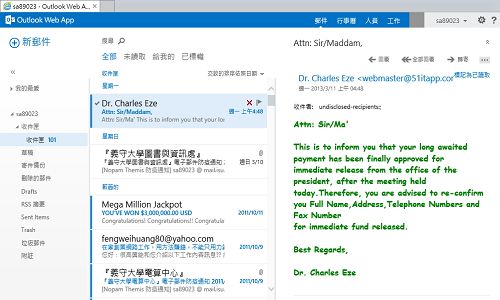
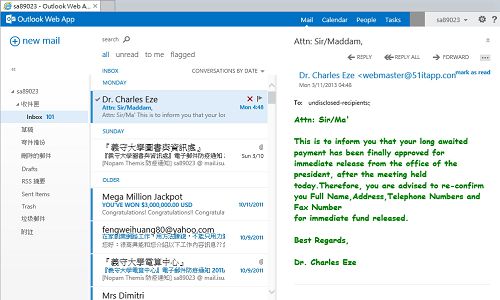
| 教職員電郵信箱信件匯入成功。 | Success to copy the mails to the new version of email mailbox. | ||
 |  | ||
| step 15 | |||
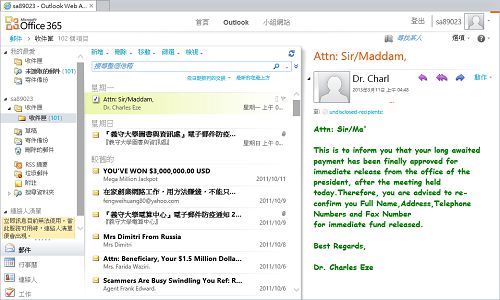
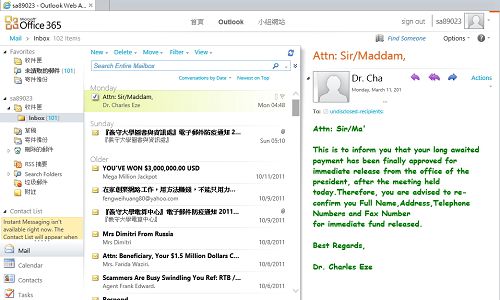
| 雲端電郵信箱信件匯入成功。 | Success to copy the mails to the cloud email mailbox. | ||
 |  | ||